
Build enterprise-grade applications with natural language using AWS App Studio (preview)

AWS App Studio shifts the bottleneck from hand-coding to orchestration of data, workflows, and access control. For enterprise teams, the practical question is less about whether a no-code front end can be generated, and more about how the generated app fits existing identity, data, and integration boundaries. The article highlights that App Studio is not a standalone app toy; it sits on top of IAM Identity Center, managed data storage, and connectors that tie business workflows into AWS services and external systems.
The architectural trade-off is speed versus explicit control. App Studio can generate UI, data entities, and automations quickly, but teams still need to decide which parts belong in managed components and which should remain in existing services such as Lambda, S3, Aurora, or Salesforce. That separation matters for maintainability: generated workflow logic may accelerate delivery, while custom integrations preserve reuse and reduce duplication across systems.
Governance is built into the operating model, not added later. The distinction between admin, builder, and app user roles means platform teams can centralize permissions, connector configuration, and visibility into apps created inside the organization. For enterprises, that creates a control point for access management and integration policy, especially when builders are empowered to publish applications into testing or production environments.
Operationally, the main value is shortening the path from request to working application without removing deployment discipline. The preview still requires decisions about regional availability, environment promotion, MFA, and identity setup. In other words, App Studio may reduce development lead time, but it does not eliminate the need for architectural standards, connector governance, and review of how generated automations interact with production data and services.
Note: This animation above shows the flow at an accelerated speed for demonstration purposes.
- Builder – Members of the builder group can create, build, and share applications. If you’re more interested in the journey of building applications, you can jump to the section directly following, “Using App Studio as a builder: Creating an application.”
- Admin – Members in this group can manage groups and roles, create and edit connectors, and maintain visibility into other apps built within their organization. In addition to these permissions, admins can also build apps of their own. To enable and set up App Studio or to learn more about what you can do as an administrator, you can jump to the section, “Getting started with AWS App Studio.”
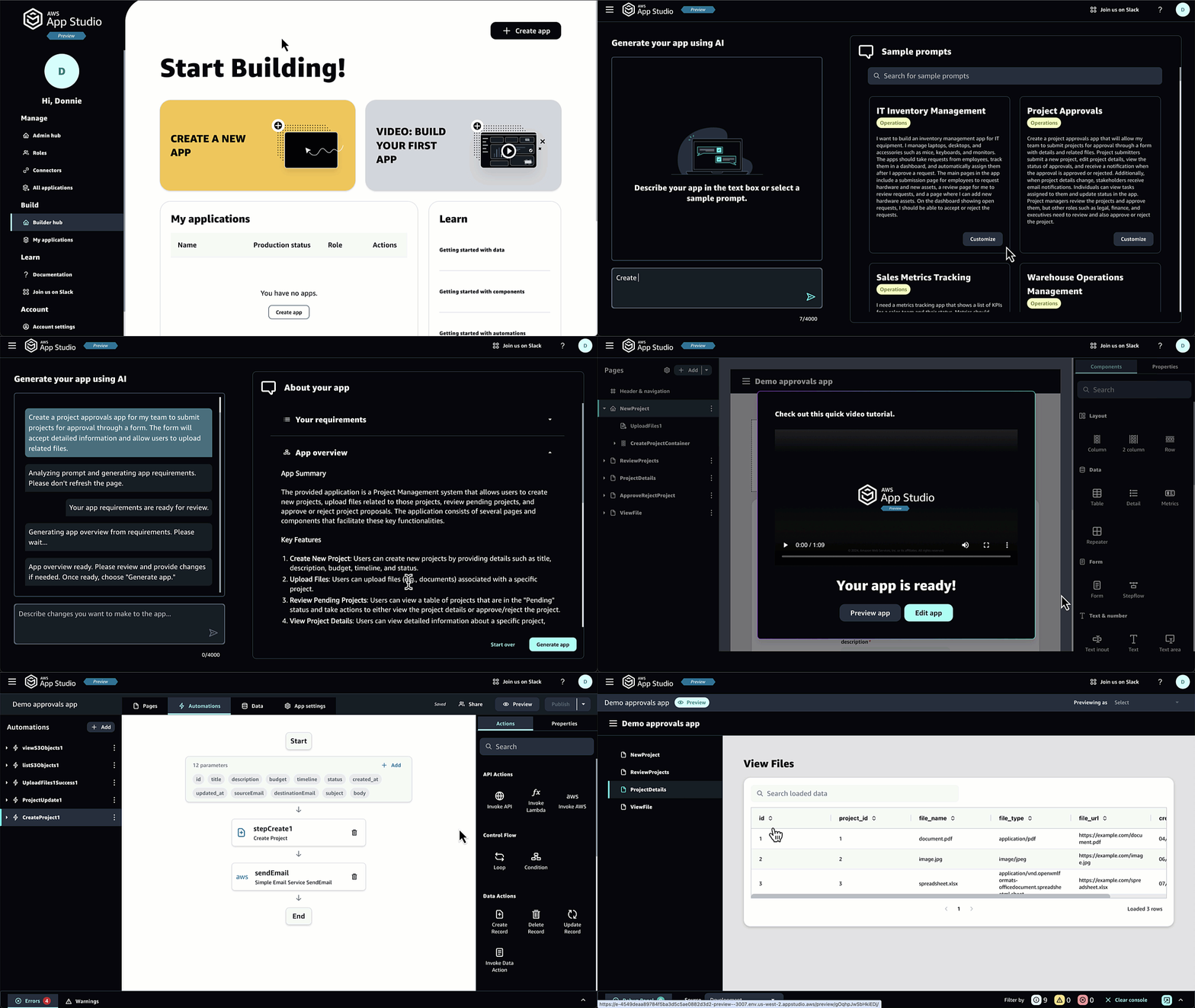
 I give it a name, and there are two options for me to build the app: Generate an app with AI or Start from scratch. I select Generate an app with AI.
 On the next page, I can start building the app by simply describing what I need in the text box. I also can choose sample prompts which are available on the right panel.
 Then, App Studio will prepare app requirements for me. I can improve my plan for the application by refining the prompt and reviewing the updated requirements. Once I’m happy with the results, I select Generate app, and App Studio will generate an application for me.
 I found this to be a good experience for me when I started building apps with App Studio. The generative AI capability built into App Studio generated an app for me in minutes, compared to the hours or even days it would have taken me to get to the same point using other tools.
After a few minutes, my app is ready. I also see that App Studio prepares a quick tutorial for me to navigate around and understand different areas.
I found this to be a good experience for me when I started building apps with App Studio. The generative AI capability built into App Studio generated an app for me in minutes, compared to the hours or even days it would have taken me to get to the same point using other tools.
After a few minutes, my app is ready. I also see that App Studio prepares a quick tutorial for me to navigate around and understand different areas.
 There are three main areas in App Studio: Pages, Automations, and Data. I always like to start building my apps by defining the data models first, so let’s navigate to the Data section.
 In the Data section, I can model my application data with the managed data store powered by DynamoDB or using the available data connectors. Because I chose to let AI generate this app, I have all the data entities defined for me. If I opted to do it manually, I would need to create entities representing the different data tables and field types for my application.
 Once I’m happy with the data entities, I can build visual pages. In this area, I can create the UI for my users. I can add and arrange components like tables, forms, and buttons to create a tailored experience for my end users.
 While I’m building the app, I can see the live preview by selecting Preview. This is useful for testing the layout and functionality of my application.
 But the highlight for me in these three areas is the Automations. With the automations, I can define rules, workflows, and any actions that define or extend my application’s business logic. Because I chose to build this application with App Studio’s generative AI assistant, it automatically created and wired up multiple different automations needed for my application.
For example, every time a new project is submitted, it will trigger an action to create a project and send a notification email.
But the highlight for me in these three areas is the Automations. With the automations, I can define rules, workflows, and any actions that define or extend my application’s business logic. Because I chose to build this application with App Studio’s generative AI assistant, it automatically created and wired up multiple different automations needed for my application.
For example, every time a new project is submitted, it will trigger an action to create a project and send a notification email.
 I can also extend my business logic by invoking API callouts, AWS Lambda, or other AWS services. Besides creating the project, I’d also like to archive the project in a flat-file format into an S3 bucket. To do that, I also need to do some processing, and I happen to already have the functionality built in an existing Lambda function.
Here, I select Invoke Lambda, as shown in the previous screenshot. Then, I need to set the Connector, Function name, and the Function event payload to pass into my existing Lambda function.
I can also extend my business logic by invoking API callouts, AWS Lambda, or other AWS services. Besides creating the project, I’d also like to archive the project in a flat-file format into an S3 bucket. To do that, I also need to do some processing, and I happen to already have the functionality built in an existing Lambda function.
Here, I select Invoke Lambda, as shown in the previous screenshot. Then, I need to set the Connector, Function name, and the Function event payload to pass into my existing Lambda function.
 Finally, after I’m happy with all the UI pages, data entities, and automations, I can publish it by selecting Publish. I have the flexibility to publish my app in a Testing or Production environment. This helps me to test my application before pushing it to production.
 While the previous section covered the application building experience from a builder’s perspective, setting up and managing App Studio itself is a crucial responsibility for admins and builders. Here’s how we would get started with App Studio:
Getting started with AWS App Studio
AWS App Studio integrates with AWS IAM Identity Center, making it easier for me to secure access with the flexibility to integrate with existing single sign-on (SSO) and integration with Lightweight Directory Access Protocol (LDAP). Also, App Studio manages the application deployments and operations, removing the time and effort required to operate applications. Now, I can spend more of my time adding features to an application and customizing it to user needs.
Before I can use App Studio to create my applications, I need to enable the service. Here is how an administrator would set up an App Studio instance.
First, I need to go to the App Studio management console and choose Get started.
While the previous section covered the application building experience from a builder’s perspective, setting up and managing App Studio itself is a crucial responsibility for admins and builders. Here’s how we would get started with App Studio:
Getting started with AWS App Studio
AWS App Studio integrates with AWS IAM Identity Center, making it easier for me to secure access with the flexibility to integrate with existing single sign-on (SSO) and integration with Lightweight Directory Access Protocol (LDAP). Also, App Studio manages the application deployments and operations, removing the time and effort required to operate applications. Now, I can spend more of my time adding features to an application and customizing it to user needs.
Before I can use App Studio to create my applications, I need to enable the service. Here is how an administrator would set up an App Studio instance.
First, I need to go to the App Studio management console and choose Get started.
 As mentioned, App Studio integrates with IAM Identity Center and will automatically detect if you have an existing organization instance in IAM Identity Center. To learn more about the difference between an organization and an account instance on IDC, you can visit the Manage organization and account instances of IAM Identity Center page.
In this case, I don’t have any organization instance, so App Studio will guide me through creating an account instance in IAM Identity Center. Here, as an administrator, I select Create an account instance for me.
As mentioned, App Studio integrates with IAM Identity Center and will automatically detect if you have an existing organization instance in IAM Identity Center. To learn more about the difference between an organization and an account instance on IDC, you can visit the Manage organization and account instances of IAM Identity Center page.
In this case, I don’t have any organization instance, so App Studio will guide me through creating an account instance in IAM Identity Center. Here, as an administrator, I select Create an account instance for me.
 In the next section, Create users and groups and add them to App Studio, I need to define both an admin and builder group. In this section, I add myself as the admin, and I’ll add users into the builder group later.
 The last part of the onboarding process is to review and check the tick box in the Acknowledgment section, then select Set up.
 When the onboarding process is complete, I can see from the Account page that my App Studio is Active and ready to use. At this point, I have a unique App Studio instance URL that I can access.
 This onboarding scenario illustrates how you can start without an instance preconfigured in IAM Identity Center . Learn more on the Creating and setting up an App Studio instance for the first time page to understand how to use your existing IAM Identity Center instance.
Because App Studio created the AWS IAM Identity Center account instance for me, I received an email along with instructions to sign in to App Studio. Once I select the link, I’ll need to create a password for my account and define the multi-factor authentication (MFA) to improve the security posture of my account.
Then, I can sign in to App Studio.
This onboarding scenario illustrates how you can start without an instance preconfigured in IAM Identity Center . Learn more on the Creating and setting up an App Studio instance for the first time page to understand how to use your existing IAM Identity Center instance.
Because App Studio created the AWS IAM Identity Center account instance for me, I received an email along with instructions to sign in to App Studio. Once I select the link, I’ll need to create a password for my account and define the multi-factor authentication (MFA) to improve the security posture of my account.
Then, I can sign in to App Studio.
 Add additional users (optional)
App Studio uses AWS IAM Identity Center to manage users and groups. This means that if I need to invite additional users into my App Studio instance, I need to do that in IAM Identity Center.
For example, here’s the list of my users. I can add more users by selecting Add user. Once I’ve finished adding users, they will receive an email with the instructions to activate their accounts.
Add additional users (optional)
App Studio uses AWS IAM Identity Center to manage users and groups. This means that if I need to invite additional users into my App Studio instance, I need to do that in IAM Identity Center.
For example, here’s the list of my users. I can add more users by selecting Add user. Once I’ve finished adding users, they will receive an email with the instructions to activate their accounts.
 If I need to create additional groups, I can do so by selecting Create group on the Groups page. The following screenshot shows groups I’ve defined for my account instance in IAM Identity Center.
 Using AWS App Studio as an administrator
Now, I’m switching to the App Studio and signing in as an administrator. Here, I can see two main sections: Admin hub and Builder hub.
Using AWS App Studio as an administrator
Now, I’m switching to the App Studio and signing in as an administrator. Here, I can see two main sections: Admin hub and Builder hub.
 As an administrator, I can grant users access to App Studio by associating existing user groups with roles in the Roles section:
 To map the group I created in my IAM Identity Center, I select Add group and select the Group identifier and Role. There are three roles I can configure: admin, builder, and app user. To understand the difference between each role, visit the Managing access and roles in App Studio page.
 As an administrator, I can incorporate various data sources with App Studio using connectors. App Studio provides built-in connectors to integrate with AWS services such as Amazon Aurora, Amazon DynamoDB, and Amazon Simple Storage Service (Amazon S3). It also has a built-in connector for Salesforce and a generic API and OpenAPI connector to integrate with third-party services.
Furthermore, App Studio automatically created a managed DynamoDB connector for me to get started. I also have the flexibility to create additional connectors by selecting Create connector.
As an administrator, I can incorporate various data sources with App Studio using connectors. App Studio provides built-in connectors to integrate with AWS services such as Amazon Aurora, Amazon DynamoDB, and Amazon Simple Storage Service (Amazon S3). It also has a built-in connector for Salesforce and a generic API and OpenAPI connector to integrate with third-party services.
Furthermore, App Studio automatically created a managed DynamoDB connector for me to get started. I also have the flexibility to create additional connectors by selecting Create connector.
 On this page, I can create other connectors to AWS services. If I need other AWS services, I can select Other AWS services. To learn how to define your IAM role for your connectors, visit Connect App Studio to other services with connectors.
 Join the preview
AWS App Studio is currently in preview, and you can access it in the US West (Oregon) AWS Region, but your applications can connect to your data in other AWS Regions.
Build secure, scalable, and performant custom business applications to modernize and streamline mission-critical tasks with AWS App Studio. Learn more about all the features and functionalities on the AWS App Studio documentation page, and join the conversation in the #aws-app-studio channel in the AWS Developers Slack workspace.
Happy building,
— Donnie
July 12, 2024 update: Builder and Admin sections rearranged.
Join the preview
AWS App Studio is currently in preview, and you can access it in the US West (Oregon) AWS Region, but your applications can connect to your data in other AWS Regions.
Build secure, scalable, and performant custom business applications to modernize and streamline mission-critical tasks with AWS App Studio. Learn more about all the features and functionalities on the AWS App Studio documentation page, and join the conversation in the #aws-app-studio channel in the AWS Developers Slack workspace.
Happy building,
— Donnie
July 12, 2024 update: Builder and Admin sections rearranged.
Enjoyed this article? Sign up for our newsletter to receive regular insights and stay connected.