
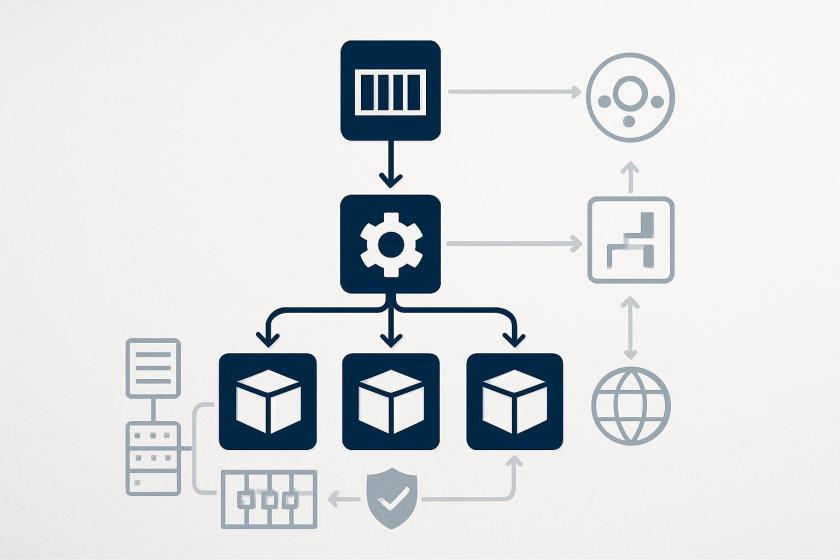
Amazon ECS Express Mode is best read as an abstraction layer for the earliest and most repetitive part of container platform adoption: standing up a production-shaped service without having to hand-wire networking, load balancing, scaling, and identity. For teams that already know what they want to deploy, the value is not just speed; it is reducing the number of places where an initial misconfiguration can delay a rollout or create an inconsistent environment.
The architectural trade-off is straightforward: you gain a smaller deployment surface, but you also accept a more opinionated path for the first version of the service. That matters for organizations with shared platform standards, because Express Mode still needs to fit into existing IAM boundaries, image promotion processes, logging requirements, and release governance. The fact that it can be driven through both console and CLI also makes it easier to fit into human-operated and automated delivery workflows.
For platform and cloud teams, the interesting detail is the transition path. A simplified entry point is only useful if it does not become a dead end. The article indicates that once the application grows, users can access and tune the underlying ECS resources, which is important for teams that start with a fast launch and later need deeper control over health checks, resource sizing, or scaling behavior.
There is also an operational design implication in the shared load balancer model. Reusing an ALB across multiple services can lower overhead, but it introduces shared dependency management, rule sprawl risk, and routing governance concerns. In practice, Express Mode looks most valuable for teams that want a low-friction production baseline while preserving a path to full infrastructure control when application complexity catches up.
 Amazon ECS Express Mode provides a simplified interface to the Amazon ECS service resource with new integrations for creating commonly used resources across AWS. ECS Express Mode automatically provisions and configures ECS clusters, task definitions, Application Load Balancers, auto scaling policies, and Amazon Route 53 domains from a single entry point.
Getting started with ECS Express Mode
Amazon ECS Express Mode provides a simplified interface to the Amazon ECS service resource with new integrations for creating commonly used resources across AWS. ECS Express Mode automatically provisions and configures ECS clusters, task definitions, Application Load Balancers, auto scaling policies, and Amazon Route 53 domains from a single entry point.
Getting started with ECS Express ModeLet me walk you through how to use Amazon ECS Express Mode. I’ll focus on the console experience, which provides the quickest way to deploy your containerized application. For this example, I’m using a simple container image application running on Python with the Flask framework. Here’s the
Dockerfile of my demo, which I have pushed to an Amazon Elastic Container Registry (Amazon ECR) repository:
# Build stage
FROM python:3.6-slim as builder
WORKDIR /app
COPY requirements.txt .
RUN pip install --no-cache-dir --user -r requirements.txt gunicorn

# Runtime stage
FROM python:3.6-slim
WORKDIR /app
COPY --from=builder /root/.local /root/.local
COPY app.py .
ENV PATH=/root/.local/bin:$PATH
EXPOSE 80
CMD ["gunicorn", "--bind", "0.0.0.0:80", "app:app"]
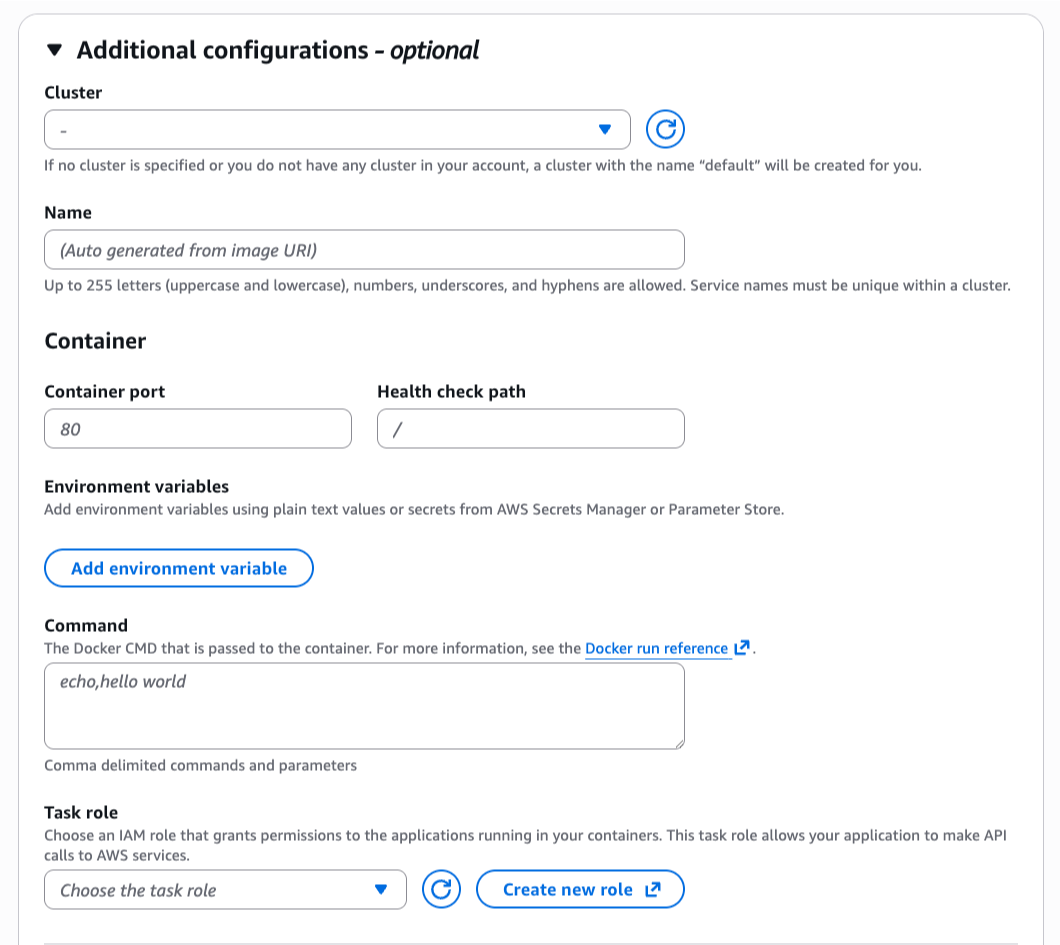
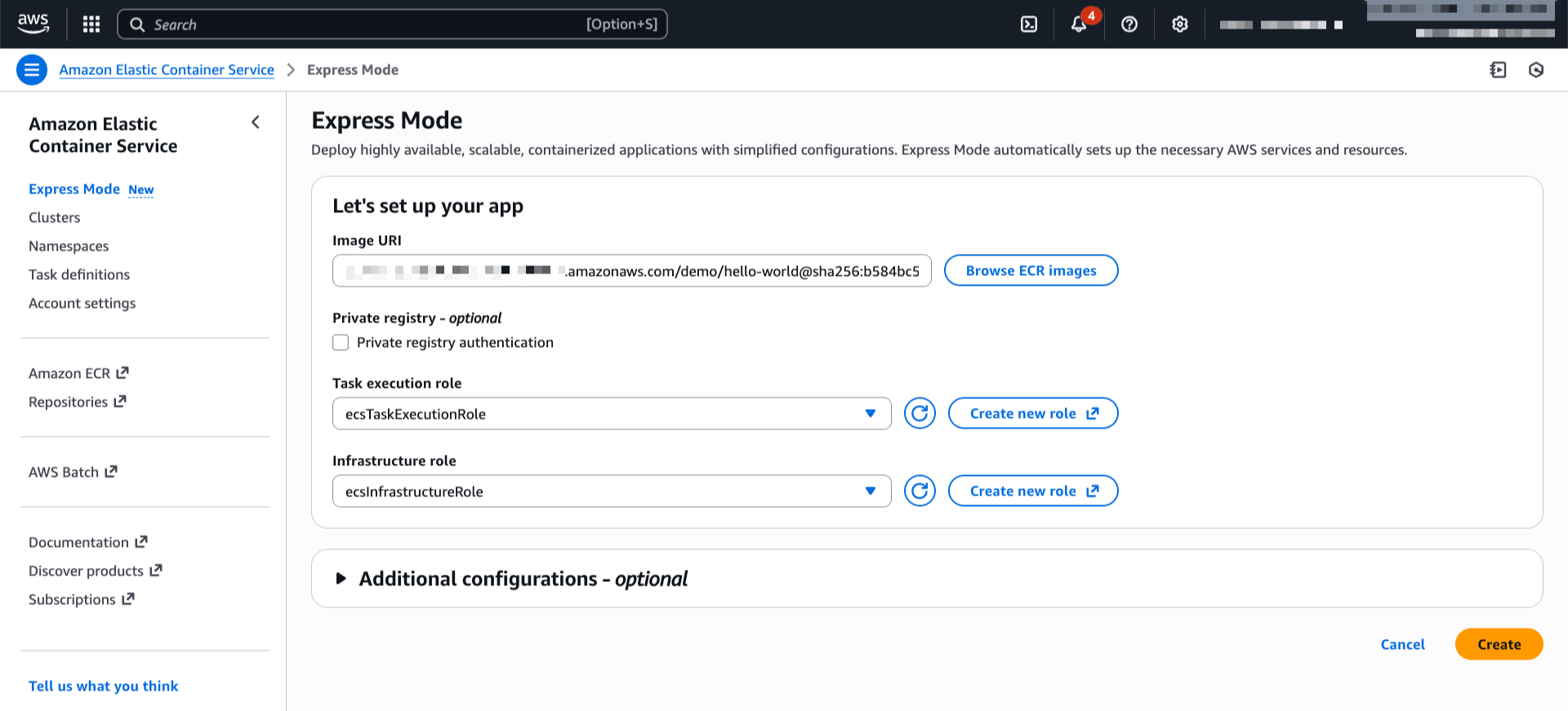 If I want to customize the deployment, I can expand the Additional configurations section to define my cluster, container port, health check path, or environment variables.
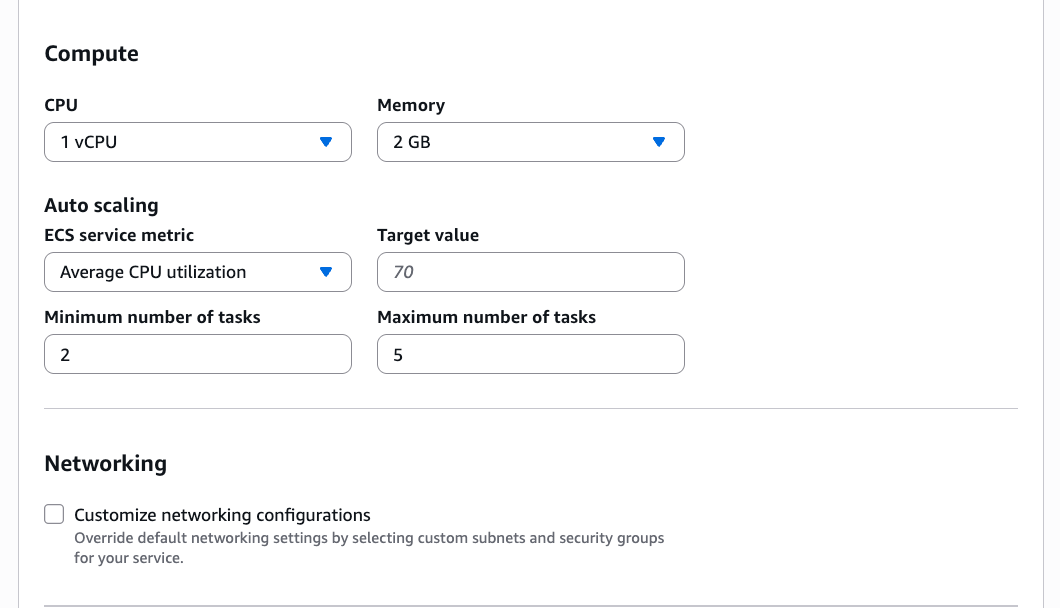
 In this section, I can also adjust CPU, memory, or scaling policies.
 Setting up logs in Amazon CloudWatch Logs is something I always configure so I can troubleshoot my applications if needed. When I’m happy with the configurations, I choose Create.
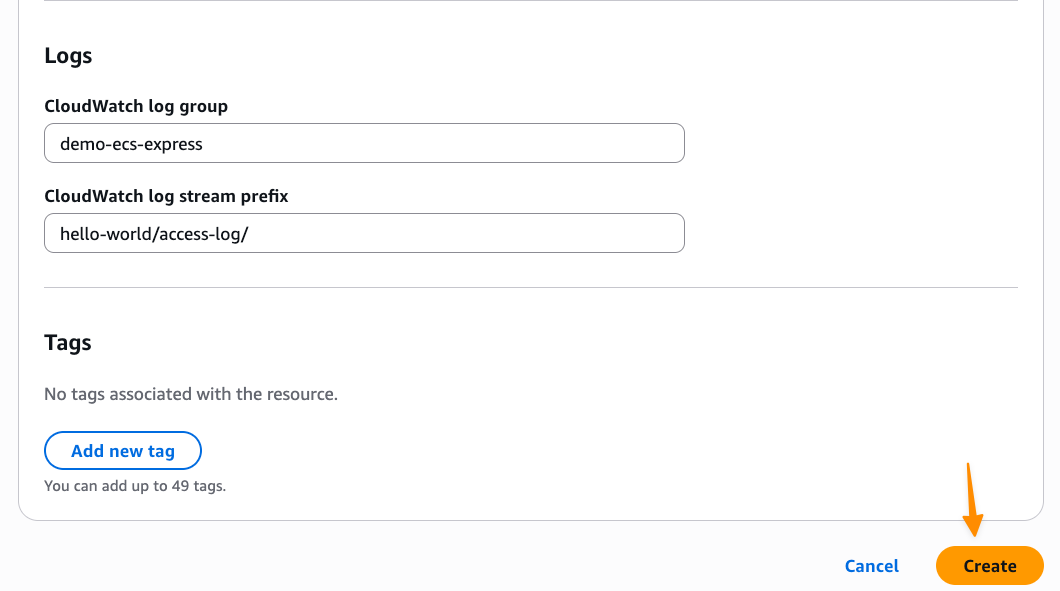 After I choose Create, Express Mode automatically provisions a complete application stack, including an Amazon ECS service with AWS Fargate tasks, Application Load Balancer with health checks, auto scaling policies based on CPU utilization, security groups and networking configuration, and a custom domain with an AWS provided URL. I can also follow the progress in Timeline view on the Resources tab.
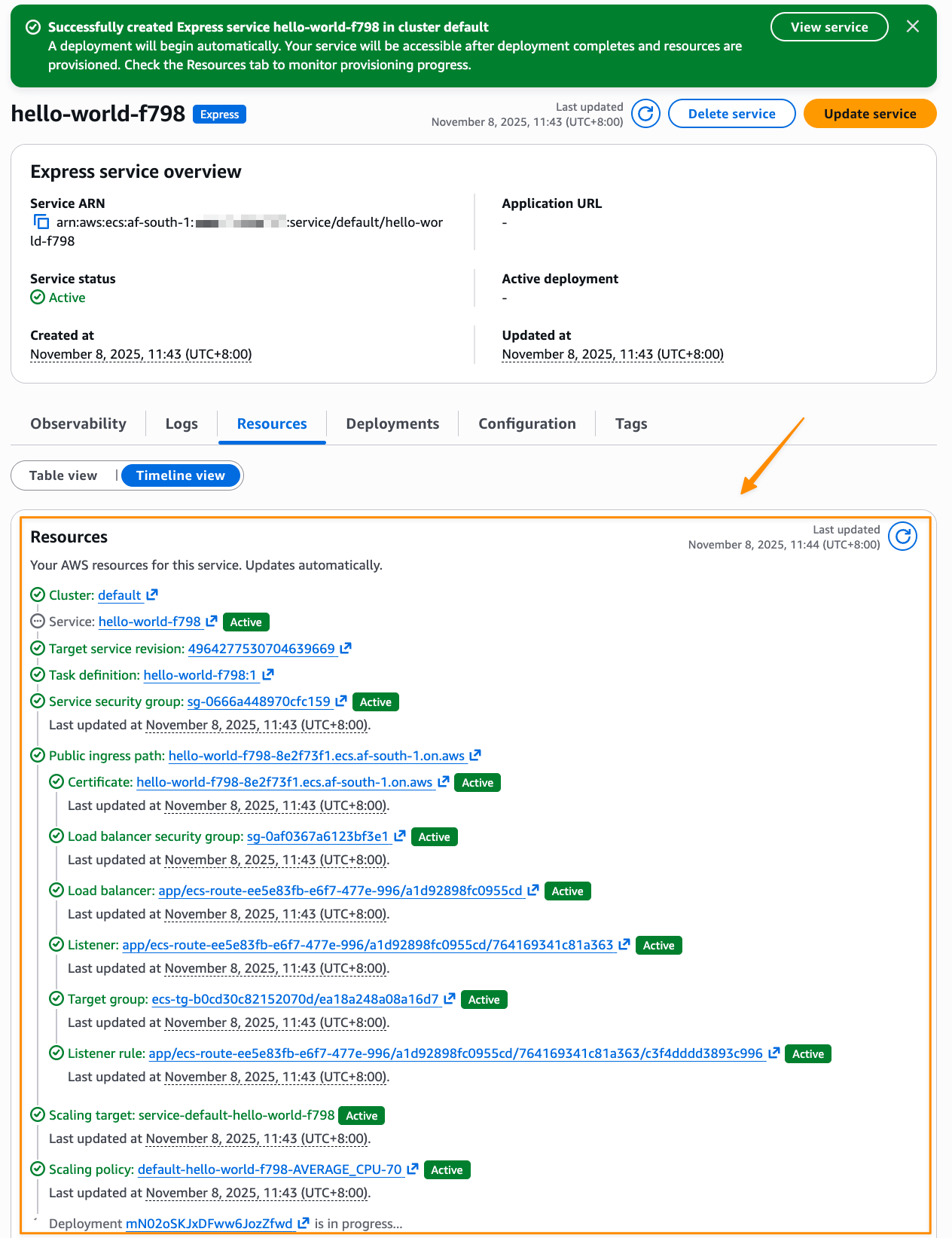 If I need to do a programmatic deployment, the same result can be achieved with a single AWS Command Line Interface (AWS CLI) command:
aws ecs create-express-gateway-service \
--image [ACCOUNT_ID].ecr.us-west-2.amazonaws.com/myapp:latest \
--execution-role-arn arn:aws:iam::[ACCOUNT_ID]:role/[IAM_ROLE] \
--infrastructure-role-arn arn:aws:iam::[ACCOUNT_ID]:role/[IAM_ROLE]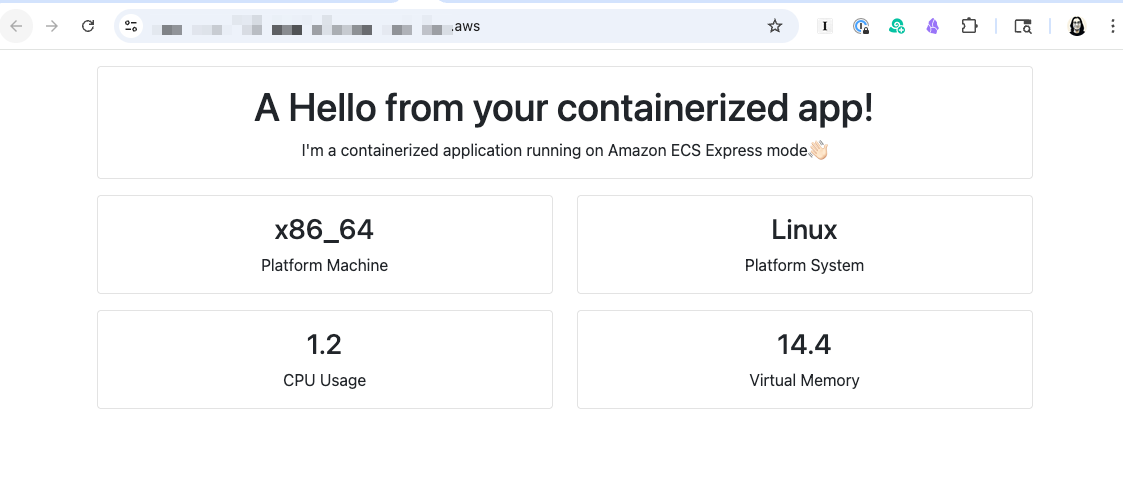 After the application is created, I can see the details by visiting the specified cluster, or the default cluster if I didn’t specify one, in the ECS service to monitor performance, view logs, and manage the deployment.
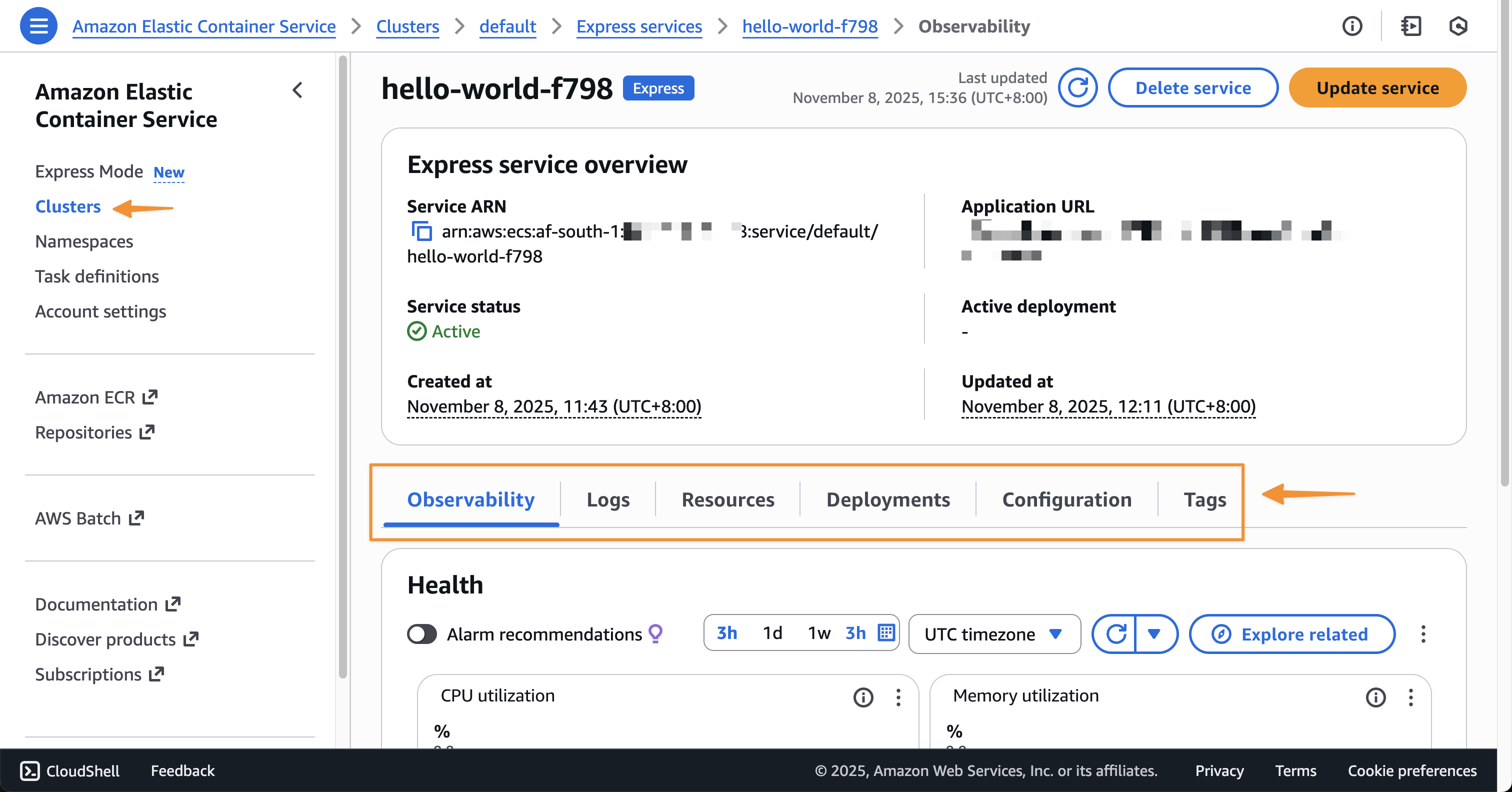 When I need to update my application with a new container version, I can return to the console, select my Express service, and choose Update. I can use the interface to specify a new image URI or adjust resource allocations.
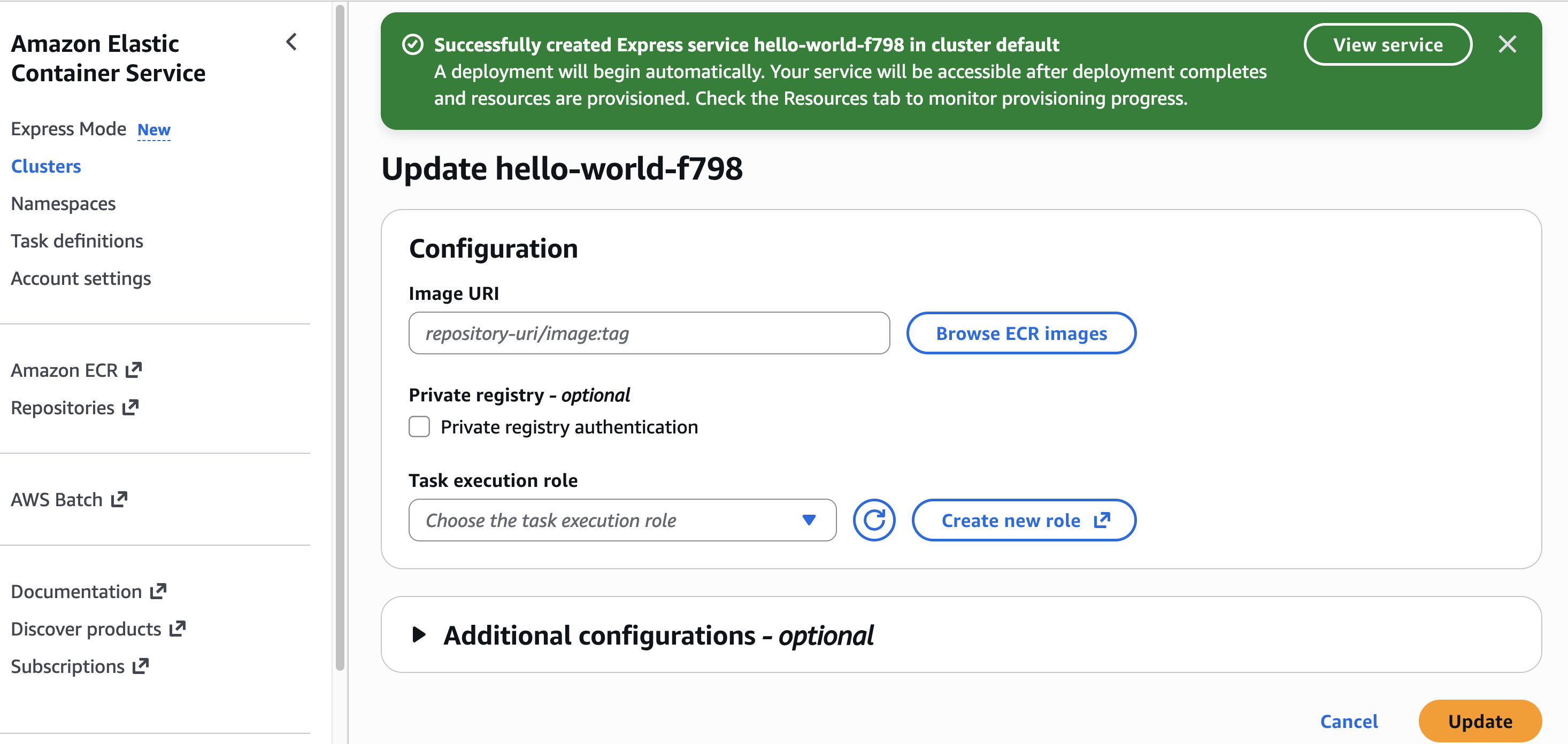 Alternatively, I can use the AWS CLI for updates:
aws ecs update-express-gateway-service \
  --service-arn arn:aws:ecs:us-west-2:[ACCOUNT_ID]:service/[CLUSTER_NAME]/[APP_NAME] \
  --primary-container '{
    "image": "[IMAGE_URI]"
  }'
Here are additional things about ECS Express Mode:
- Availability – ECS Express Mode is available in all AWS Regions at launch.
- Infrastructure as Code support – You can use IaC tools such as AWS CloudFormation, AWS Cloud Development Kit (CDK), or Terraform to deploy your applications using Amazon ECS Express Mode.
- Pricing – There is no additional charge to use Amazon ECS Express Mode. You pay for AWS resources created to launch and run your application.
- Application Load Balancer sharing – The ALB created is automatically shared across up to 25 ECS services using host-header based listener rules. This helps distribute the cost of the ALB significantly.
— Donnie
Enjoyed this article? Sign up for our newsletter to receive regular insights and stay connected.