

The significant change is not a new mobile feature but a removal of friction in federated authentication. By letting users enter an access portal or third-party identity URL directly in the console app, the sign-in flow stops treating mobile access as a special-case exception. For practitioners, that matters because mobile administration only becomes credible when it reuses the same centralized credentials, role selection, and authentication policy already governing desktop access, instead of forcing separate app-specific accounts or workarounds.
Technically, the flow is a browser handoff followed by token-based validation. The app redirects the user to the identity provider’s hosted sign-in page, where credentials and any required MFA are handled, then receives an authentication token containing user, role, and permission data. AWS validates that token before granting access to the chosen account and role. The practical benefit is consistency: the same sign-in URL can support IAM Identity Center, federation, or third-party providers without changing how access is administered.
The limitation is that convenience still depends on identity infrastructure being correctly configured. Users need the right sign-in URL, a valid workforce identity, and any verification code or MFA step delivered by the provider; otherwise the flow fails before mobile management even begins. The broader significance is disciplined, not magical: AWS is aligning the mobile app with existing enterprise identity controls. That improves usability and security, but it does not reduce the operational burden of identity governance or permissions design.
Solution overview
In this blog post, you’ll learn how to sign in to the AWS Console Mobile Application using AWS IAM Identity Center, federation, or a third-party Identity Provider (IdP) like Okta, Google Workspace, or JumpCloud. We’ll walk through how SSO works on the AWS Console Mobile Application, and the process of signing in using your SSO sign in URL for the first time. If you are an Administrator and want to learn about how to set up an organization instance of IAM Identity Center with a commonly used identity source, several helpful tutorials are available on the AWS IAM Identity Center User Guide.Key benefits
SSO on the AWS Console Mobile Application streamlines access to your AWS resources on your mobile device using the same centralized authentication that your organization uses for web-based access to your AWS resources. The key features of SSO on the AWS Console Mobile Application include; 1) centralized access, 2) secure authentication, and 3) consistency.- Centralized access – When you access AWS Console Mobile Application using SSO, you can use a single set of credentials to securely access multiple AWS accounts and roles with increased convenience.
- Secure authentication – The use of organizational credentials and optional Multi-Factor Authentication (MFA) ensures that access is secure, whether you are accessing your AWS resources on your desktop or mobile device. If you are an Administrator and want to learn about how to set up MFA in Identity Center, you can find more information in the AWS IAM Identity Center User Guide.
- Consistency – The AWS Console Mobile Application’s SSO sign in flow is designed to mirror the web-based experience, making the process of switching between accounts and roles on your mobile device familiar and easy.
Prerequisites
You will need the following:- An AWS account with the appropriate permissions for the AWS services you want to access from the Console Mobile Application.
- A mobile device with the AWS Console Mobile Application (available on iOS and Android) installed and set up.
- A valid AWS Identity user account, or third-party identity provider workforce user account.
- An AWS access portal, federated, or third-party identity provider URL. You’ll typically receive a sign in URL from your administrator. This URL is usually what you use to sign in to AWS.
How SSO works on the AWS Console Mobile Application
SSO on the AWS Console Mobile Application allows you to authenticate using your organizational credentials from AWS IAM Identity Center, federation, or a third-party Identity Provider (IdP) rather than creating separate credentials specific to AWS. This type of authentication works allowing you to specify a custom sign in URL from your identity provider as part of the first time sign in experience for the AWS Console Mobile Application. Once you’ve provided the sign in URL the AWS Console Mobile Application redirects you to the sign in page of that provider (this page is hosted by the provider). You then enter your credentials (e.g. username and password) on the identity provider’s page and authentication is handled by the identity provider. If MFA is required, it is also enforced by the identity provider. Once successfully authenticated, the identity provider issues an authentication token to the AWS Console Mobile Application. This token contains information about your user ID, role, and permissions. The token is then validated by AWS to ensure it grants the necessary access for the AWS Console Mobile Application to access AWS services on your behalf. If the token is valid and you have the necessary permissions, the AWS Console Mobile Application allows you to monitor and manage your AWS resources.Sign in to AWS Console Mobile Application with AWS access portal
Step 1: Open the AWS Console Mobile Application and tap the Use a sign in URL button on the Sign in screen as shown in figure 1.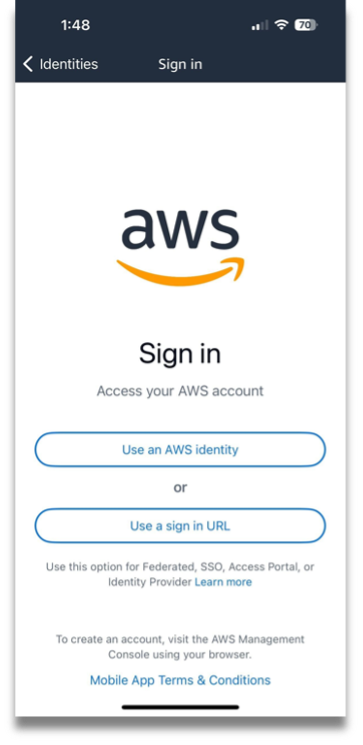
Figure 1 – AWS Console Mobile Application sign in screen.
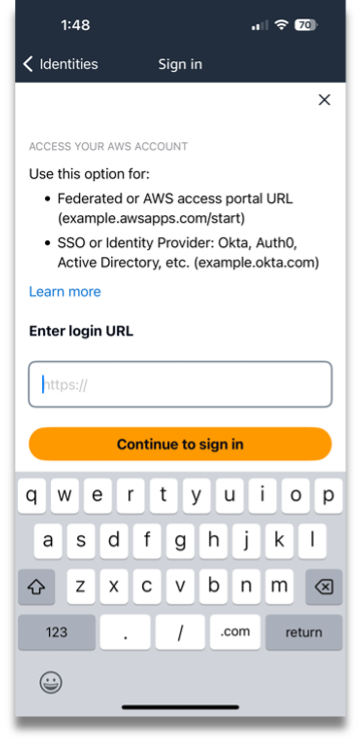
Figure 2 – AWS Console Mobile Application sign in URL screen.
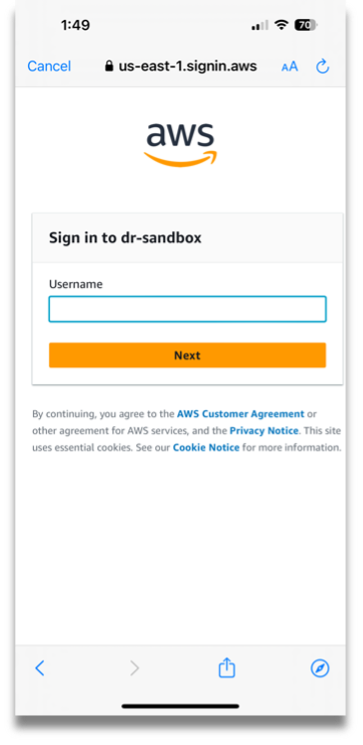
Figure 3 – AWS Access Portal username screen.
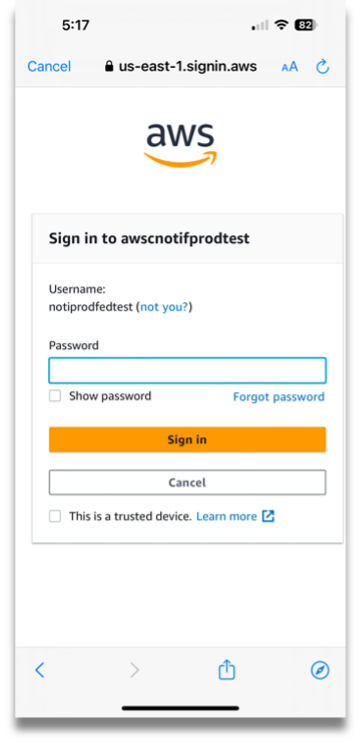
Figure 4 – AWS Access Portal password screen.

Figure 5 – AWS Access Portal accounts screen.

Figure 6 – AWS Access Portal accounts screen (continued)
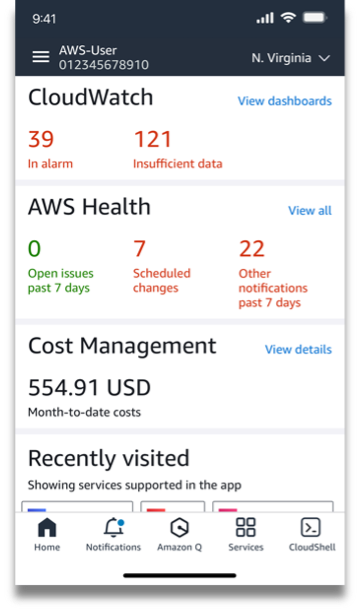
Figure 7 – AWS Console Mobile Application home screen.
Sign in to AWS Console Mobile Application using federation or third-party identity provider
Step 1: Open the AWS Console Mobile Application and tap the Use a sign in URL button on the Sign in screen as shown in figure 8.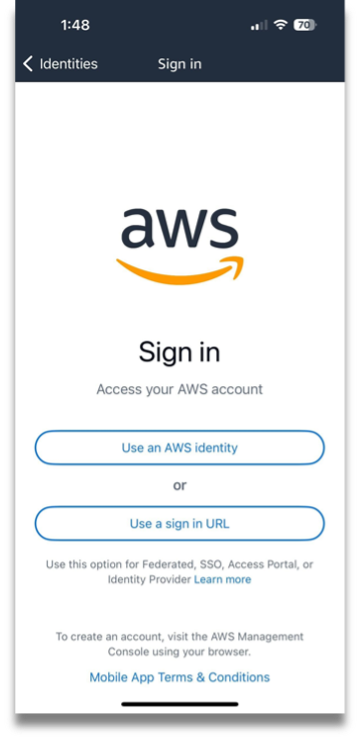
Figure 8 – AWS Console Mobile Application sign in screen.
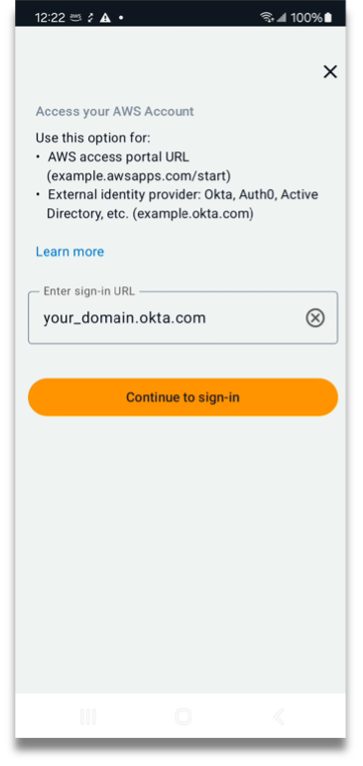
Figure 9 – AWS Console Mobile Application sign in URL screen.
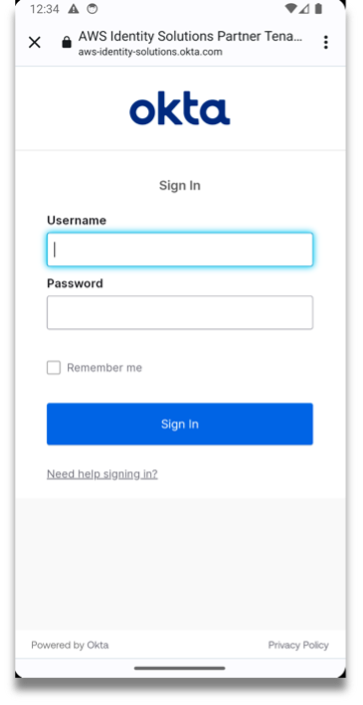
Figure 10 – Okta sign in screen.
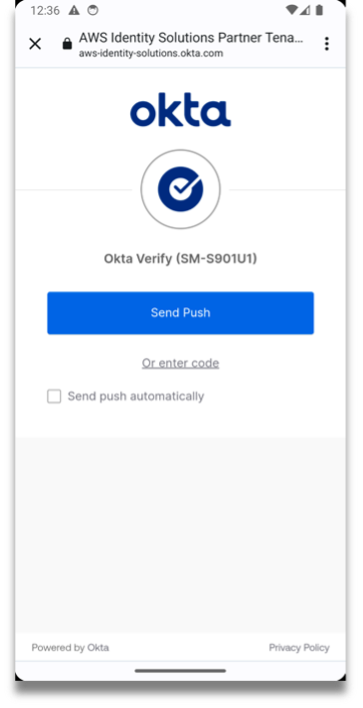
Figure 11 – Okta multi-factor authentication screen.
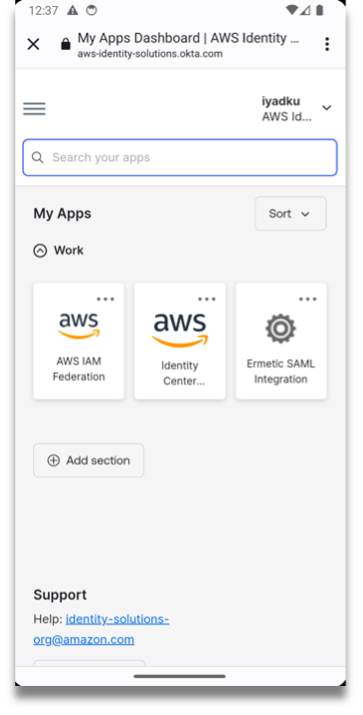
Figure 12 – Okta My Apps screen.

Figure 13 – AWS Access Portal accounts screen.
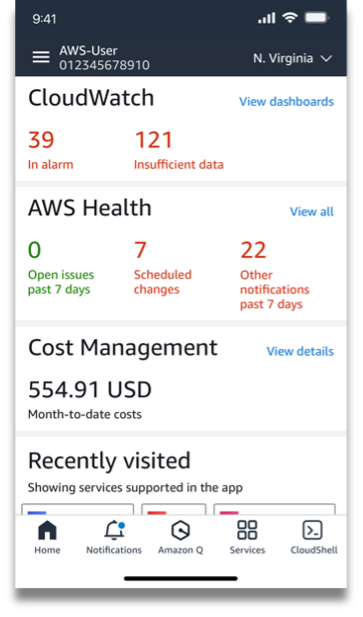
Figure 14 – AWS Console Mobile Application home screen.
Conclusion
AWS customers using SSO to sign in to an AWS account can use their sign in URL to securely authenticate with the AWS Console Mobile Application. The AWS Console Mobile Application lets customers monitor, manage, and receive notifications to stay informed about their AWS resources while on-the-go. Visit the product page for more information and download the AWS Console Mobile Application today.About the Authors
Jarrod Jodoin
Jarrod Jodoin is the Principal Product Manager for AWS Console Mobile, where he focuses on making it easy for all AWS customers to monitor, manage, and stay connected to their AWS resources while on-the-go.Iyad Kuwatly
Iyad is a Senior Software Development Engineer on the AWS Console Mobile team. With over a decade of experience in mobile development, he has designed and delivered high-performing mobile applications for both consumer-facing and enterprise use cases.Enjoyed this article? Sign up for our newsletter to receive regular insights and stay connected.